



DASTProfessional
Crawling
-
Last updated: June 8, 2026
-
Read time: 6 Minutes
The crawl phase is usually the first part of a scan. During the crawl phase, Burp Scanner navigates around the application. It follows links, submits forms, and logs in where necessary, to catalog the application's content and navigational paths.
While this process may initially seem simple, the design of modern web applications means that the crawler needs to handle challenges such as volatile content, session-handling techniques, changes in application state, and robust login mechanisms to create an accurate map of the application.
Core approach
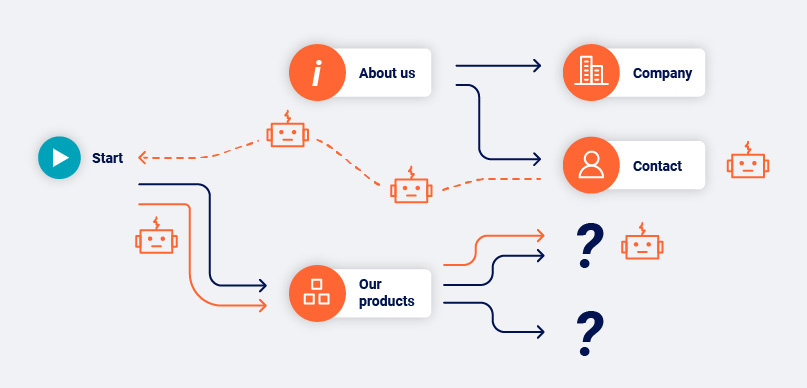
By default, the crawler uses Burp's browser to navigate around the application. Burp Scanner constructs a map of the application in the form of a directed graph, which represents the different locations in the application and the links between those locations.
Handling URL structure
Burp Scanner identifies locations based on their contents, not the URL that it used to reach them. This enables it to reliably handle modern applications that place ephemeral data, such as CSRF tokens or cache busters, into URLs. Burp Scanner is able to construct an accurate map of an application even if the entire URL within each link changes every time the link is accessed.
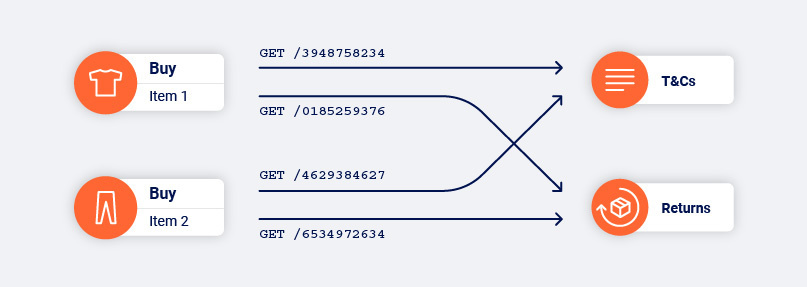
This approach also enables Burp Scanner to handle applications that use the same URL to reach multiple locations based on the application's state and the user's interactions.
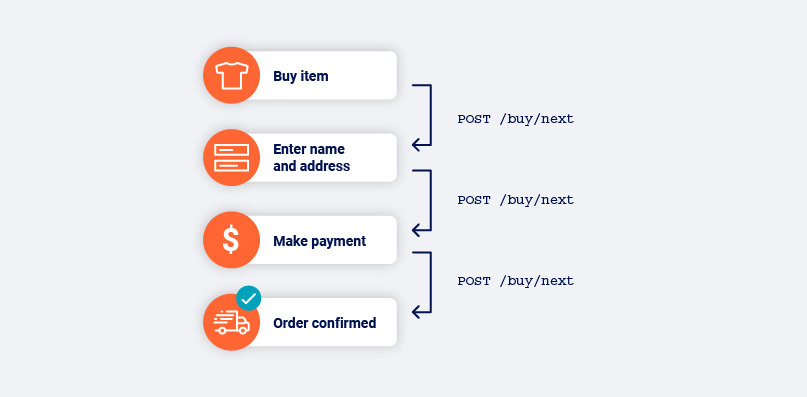
As Burp Scanner navigates around the target application, it tracks the edges in the directed graph that have not been completed. These represent the links and other navigational transitions that the crawler has observed but not yet visited.
The crawler never "jumps" to a pending link and visits it out of context when crawling. Instead, it either navigates directly from its current location, or reverts to the start location and navigates from there. This behavior replicates the actions of a human user as closely as possible.
Avoiding excess content
Crawling without making assumptions about URL structure is an effective way to deal with modern web applications. However, it can potentially cause the scan to see too much content. Modern web sites often contain many superfluous navigational paths (for example, via page footers or burger menus), that effectively link everything on the site to everything else. Burp Scanner employs several techniques to address this issue:
- It builds up fingerprints of links to locations that it has already visited, to avoid visiting them redundantly.
- It crawls in a breadth-first order that prioritizes discovery of new content.
- It has configurable cutoffs that constrain the extent of the crawl.
These measures also help to deal with "infinite" applications, such as calendars.
Session handling
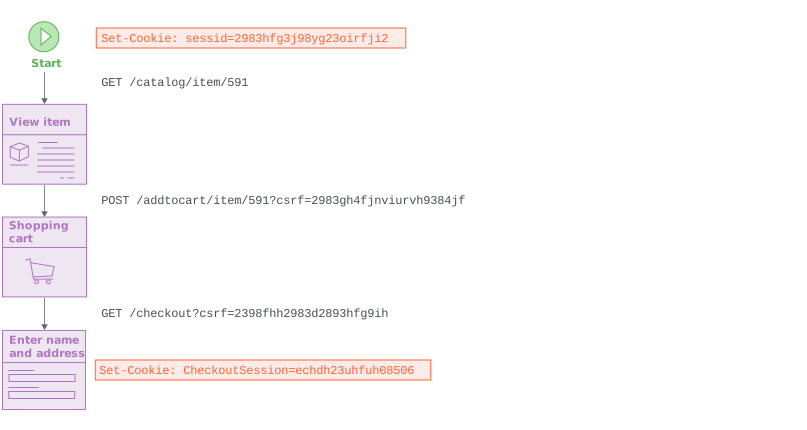
Burp Scanner is able to automatically deal with practically any session-handling mechanism. There is no need to record macros or configure session-handling rules in order to obtain a session or verify that the current session is valid.
The requests that the crawler makes as it navigates are constructed dynamically, based on the previous response. This enables Burp Scanner to handle CSRF tokens in URLs or form fields automatically, so that it can navigate functions that use complex session-handling without additional configuration.
Detecting changes in application state
Modern web applications are heavily stateful, and it is common for the same application function to return different content as a result of the user's actions. Burp's crawler detects changes in application state that result from its actions during a crawl.
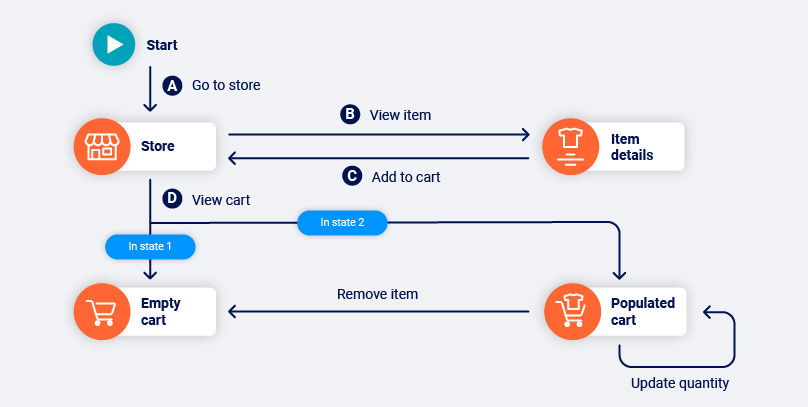
In the example below, navigating the path BC causes the application to transition from state 1 to state 2. Link D goes to a logically different location in state 1 than it does in state 2. As such, the path AD goes to the empty cart, while ABCD goes to the populated cart.
Rather than just concluding that link D is non-deterministic, Burp Scanner is able to identify the state-changing path that link D depends on. This allows the crawler to reliably reach the populated cart location in future, to access the other functions that are available from there:
Authenticated scanning
When Burp Scanner crawls a target application, it attempts to cover as much of the application's attack surface as possible. Authenticated scanning enables Burp to crawl privileged content that requires a login to access, such as user dashboards and admin panels.
The crawler can authenticate with target applications in two ways:
- Login credentials are simple username and password pairs. They are intended for sites that use a single-step login mechanism.
- Recorded login sequences are user-defined sequences of instructions. They are intended for sites that use complex login mechanisms, such as Single Sign-On.
You can only use one authentication method per scan. If you enter login credentials as well as a recorded login sequence, Burp Scanner ignores the login credentials.
Application login credentials
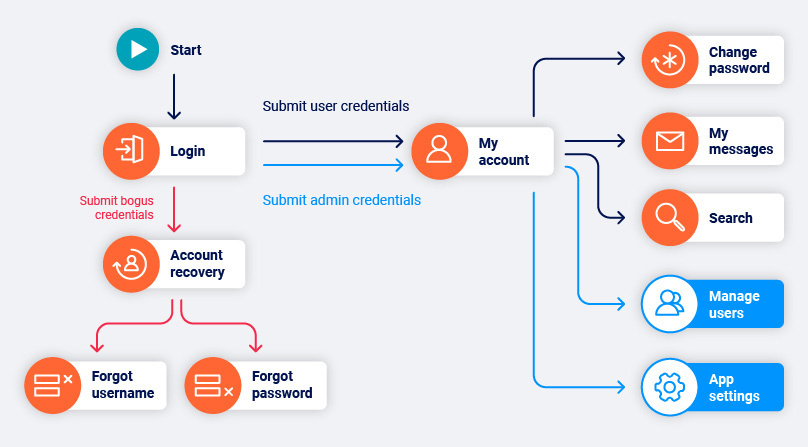
Burp Scanner begins crawls with an unauthenticated phase in which it does not submit any credentials. This enables it to discover any login and self-registration functions within the application.
Note
For more information on how Burp identifies login and self-registration forms, see Identifying login and registration forms.
If the application supports self-registration, Burp Scanner by default attempts to register a user at this point.
If the Use invalid usernames to trigger login failures scan configuration setting is enabled, Burp Scanner also attempts to submit bogus credentials to the site. Although these credentials cannot be used to log in, they might still reach interesting functions such as account recovery mechanisms.
Note
If you select Only perform an authenticated crawl using the provided credentials from the Crawl strategy section of the scan configuration, then Burp Scanner skips the unauthenticated phase of the crawl.
Next, Burp Scanner attempts an authenticated crawl. It visits the login function multiple times and attempts to login with:
- The credentials for the self-registered account (if applicable).
- The credentials you specify for any pre-existing account.
Burp Scanner logs in with each set of credentials in turn and crawls the content behind the login mechanism. This enables the system to capture the different functions that are available to different types of user.
Crawling volatile content
Modern web applications frequently contain volatile content, in which the same location or function returns different responses on different occasions, not necessarily as the result of any user action. This behavior can result from factors such as social media feeds, user comments, inline advertising, or genuinely randomized content (for example, message of the day or A/B testing).
The crawler can identify many instances of volatile content. It can then re-identify the same location on different visits, despite differences in response. This enables the system to focus attention on the core elements within a set of application responses, to discover key navigational paths to application content and functionality.
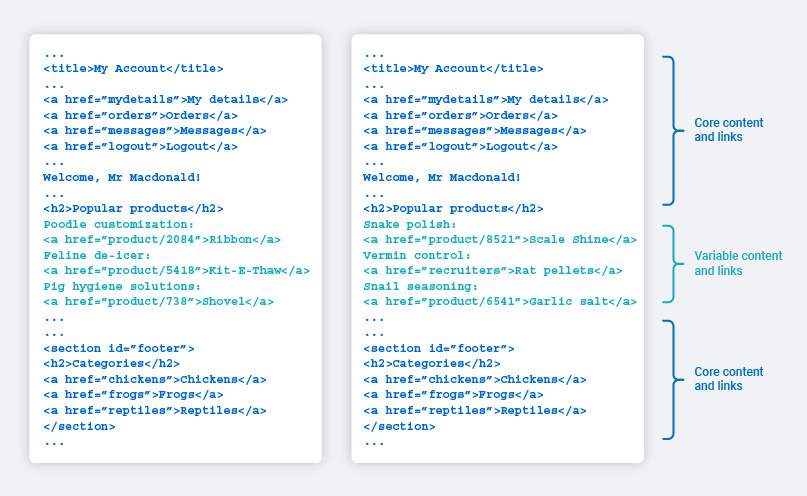
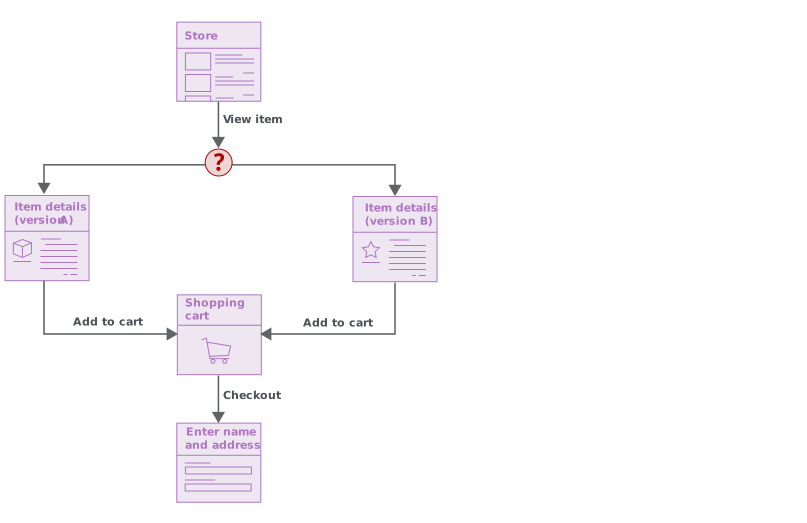
In some cases, visiting a link on different occasions returns responses that cannot be treated as the same. In this situation, Burp Scanner captures both versions of the response as two different locations and plots a non-deterministic edge in the graph. Burp can usually still find its way to content that is behind the non-deterministic link, as long as there are not too many instances of non-determinism in the crawl.
Crawling with Burp's browser
By default, Burp Scanner uses an embedded Chromium browser to navigate your target websites and applications if your machine supports it. This enables Burp Scanner to handle most client-side technologies.
One of the key benefits of browser-powered scanning is the ability to crawl JavaScript-heavy content effectively. Some websites use JavaScript to dynamically generate a navigational UI. Although this content is not present in raw HTML, Burp Scanner can use the browser to load the page, execute any scripts required to build the UI, and then continue crawling as normal.
This also enables Burp Scanner to handle cases in which websites build and send requests asynchronously or in response to document events using JavaScript.
For example, a website might use JavaScript to build a form submission request after an onsubmit event, adding a generated CSRF token to the parameters. The browser also enables the crawler to interact with elements that have been made clickable by JavaScript event handlers, and would not otherwise be identified as navigational.
To manually enable or disable browser-powered scanning in your scan configuration, go to Crawl settings > Discovery logic.
Viewing crawl paths
In Burp Suite Professional, you can monitor a scan's crawl phase in real time from the Target > Crawl paths tab. This tab displays the actions taken by the crawler to reach each location discovered in the target site, and any issues found in those locations.
The Target > Crawl paths tab displays combined path information for all regular, non-isolated scans in the current project. Any new non-isolated scans that you run can draw on and add to the information displayed in this tab, enabling Burp Scanner to crawl more efficiently as you run more scans.
Note
To learn about the information displayed when viewing crawl paths in Burp Suite Professional, see Crawl paths.